You open your laptop to finish one thing. Forty minutes later you've dug through 60 desktop files, hunted for a screenshot you took yesterday, and squinted at a Dock so full the icons are the size of peas.
It's not that you're messy. macOS gives every file, app and icon a place to land, but not a place to live. Downloads drop into one folder, screenshots land on the desktop, and every app you install quietly adds itself to the Dock or the menu bar. Nothing ever leaves.
The good news: each kind of clutter has a small fix. Most are built into macOS. Pick two today, and do the rest whenever you've got five minutes.
1. Let the desktop tidy itself with Stacks
Right-click an empty spot on the desktop and choose Use Stacks. macOS groups everything by kind: images, PDFs, screenshots, documents. Your 60 loose files become five neat piles, and new files join the right pile automatically.
Want them grouped by date instead? Right-click again → Group Stacks By → Date Added.
2. Give screenshots and downloads a real home
Screenshots are the biggest source of desktop chaos. Press Cmd + Shift + 5, click Options, and pick a different folder under Save to, such as a "Screenshots" folder in Documents. One change, and the desktop stops filling up.
Downloads is harder because everything lands there: installers, PDFs, images, zips. Two habits help:
- Delete installers right after you install. A .dmg file is useless once the app is in Applications.
- Sort by Date Added in Finder (View → Show View Options) so the newest file is always on top.
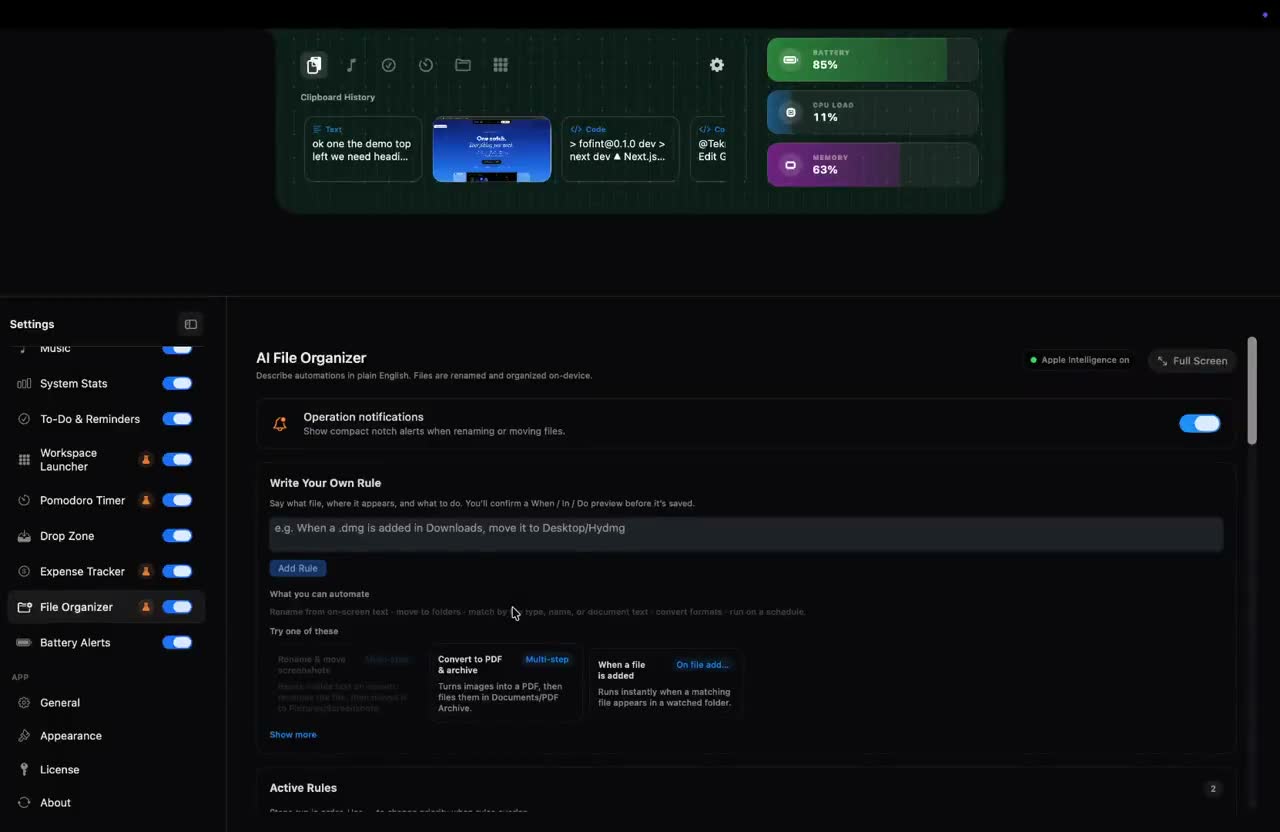
If you'd rather not do it by hand, set up rules once and let your Mac file things for you. In Notch Space, the AI File Organizer lets you write a rule in plain English, like "When a .dmg is added to Downloads, move it to Desktop/dmg", and it runs on your Mac. There's a deeper guide in how to organize Mac downloads automatically.
3. Trim the Dock to what you open daily
Open System Settings → Desktop & Dock and:
- Turn off Show suggested and recent apps in Dock. This alone removes a handful of random icons.
- Drag out any app you open less than once a week. You can still launch it with Cmd + Space (Spotlight).
- Turn on Automatically hide and show the Dock if you work on a small screen.
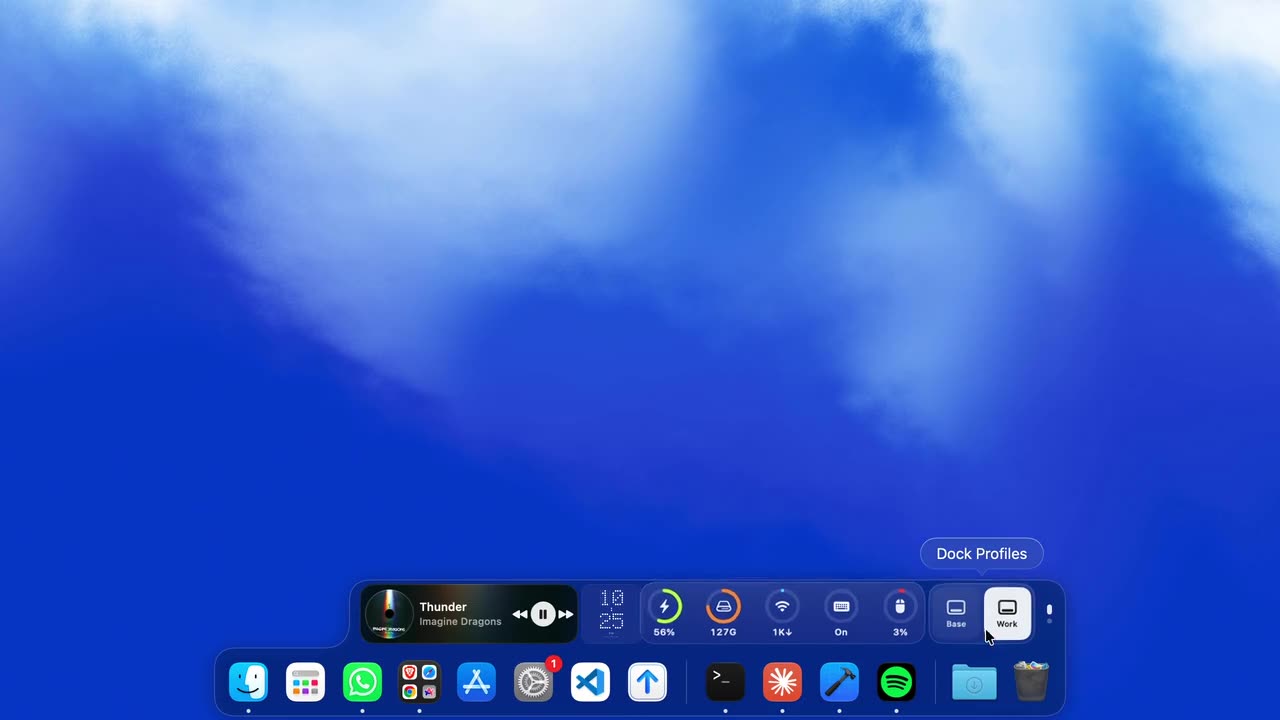
If you switch between very different kinds of work, one Dock never quite fits. The Notch Space Dock supports Dock Profiles, so you can keep a "Work" set and a "Base" set and swap between them in one click.
4. Clear out the menu bar
Hold Command and drag any menu bar icon off the bar to remove it (this works for most system icons; third-party apps usually have a "Show in menu bar" setting). Then ask of each icon left: do I look at this, or just glance past it?
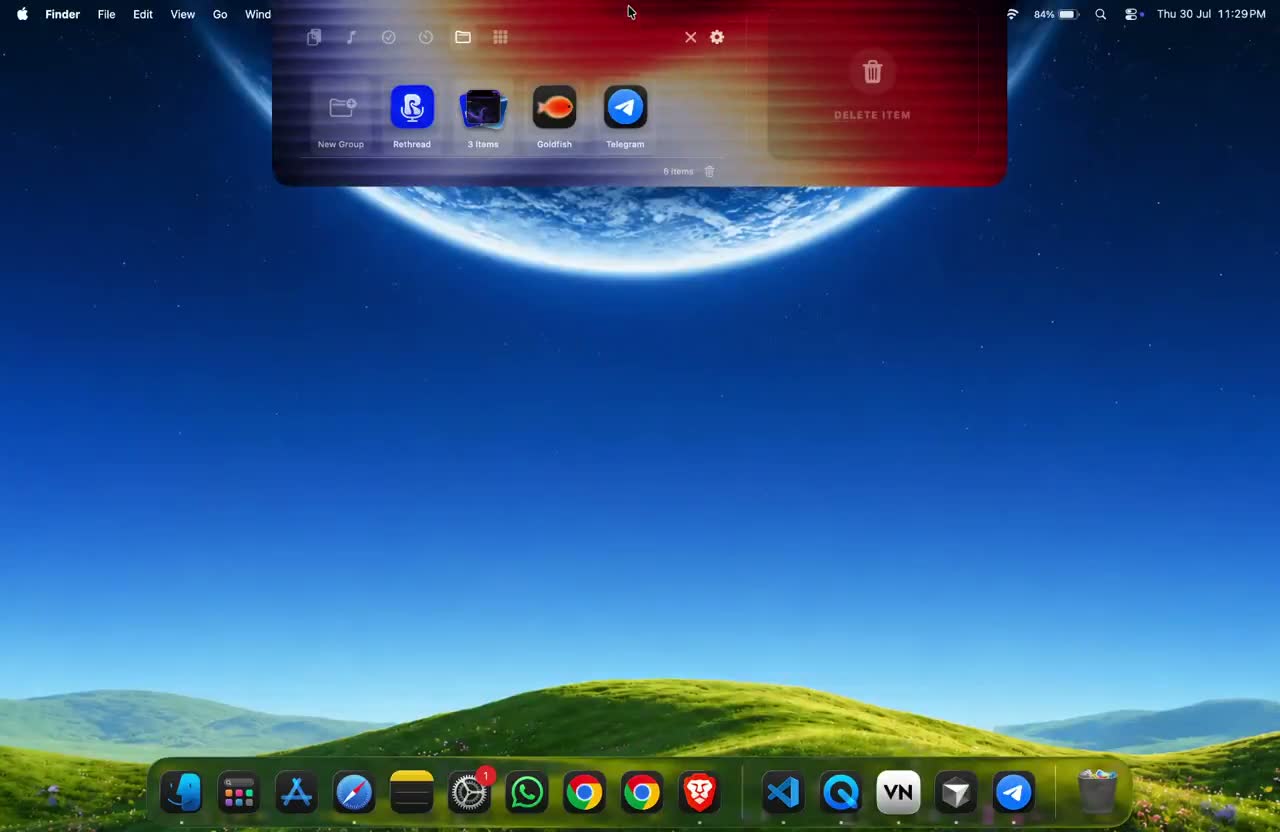
Battery, volume and music are the usual space hogs. Moving them into a pinned notch HUD keeps them visible without taking up the bar. If you're not sure which menu bar apps to keep, see menu bar apps worth paying for.
5. Stop re-copying things you already copied
A surprising amount of clutter is self-inflicted: you paste a link into a note "just to keep it", screenshot some text "for later", or keep a TextEdit window open as a scratchpad.
A clipboard manager fixes that. Everything you copy is saved, searchable and sorted, so you stop creating junk files to hold things. Here's how to see your clipboard history on Mac, with and without extra apps.
6. Use a shelf for files in transit
The desktop often becomes a waiting room: a file you're about to attach, an image you're moving from one app to another. Then it stays there for three months.
A temp shelf is a better waiting room. Drag a file to the shelf, carry on, drag it out when you need it, and the shelf empties itself. Read more about temp shelves for Mac.
7. Save your window setup instead of rebuilding it
Window clutter is clutter too. If you spend the first ten minutes of every day reopening the same apps and dragging them into place:
- On recent macOS versions, drag a window to the edge of the screen (or hold Option while dragging) to tile it into place.
- For a full setup, a workspace launcher can reopen your apps, files and tabs and arrange them in one click.
A 10-minute weekly reset
Once a week, maybe Friday afternoon:
- Empty the Downloads folder: delete, file, or move to an "Archive" folder.
- Delete screenshots you no longer need.
- Remove one app from the Dock you didn't open this week.
- Empty the Trash.
- Close every window and start Monday fresh.
The real goal
A tidy Mac isn't about looking minimal. It's about opening your laptop and seeing the work, not the mess. Start with Stacks and a screenshot folder today. That's two minutes, and you'll feel the difference by tomorrow.
If you'd like several of these fixes in one place (file rules, Dock profiles, clipboard history and a shelf), that's what we built Notch Space for. But every tip above works on its own, too.