I looked at my Dock one morning and counted. Seventeen icons. I clicked maybe five of them in a normal day.
The rest just sat there. Meanwhile, to see what song was playing, how much battery I had left, or how long was left on my focus timer, I had to open three different apps.
That's when it hit me: the Dock is the one strip of screen I see all day, and it does almost nothing.
First, the free fixes (do these even if you keep the Dock)
Before replacing anything, I cleaned up the Dock I had. These take two minutes:
- Turn off recent apps. System Settings → Desktop & Dock → turn off Show suggested and recent apps in Dock. Half the clutter disappears.
- Minimize into the app icon. Same screen, turn on Minimize windows into application icon, so minimized windows stop piling up on the right.
- Hide it when you don't need it. Press Option + Command + D to make the Dock hide and show automatically.
- Remove what you don't open weekly. Drag the icon out of the Dock until you see "Remove", then let go.
That made the Dock tidier. But it was still just a row of icons. (If the rest of your Mac feels crowded too, here are 7 five-minute fixes for a cluttered Mac.)
What I actually wanted from a Dock
I wanted the Dock to show me things, not just launch things:
- What's playing, with play and skip buttons
- The time and my focus timer
- Battery, CPU and network at a glance
- Different app sets for work and for everything else
macOS can't do any of that. So I built it.
The Dock I use now
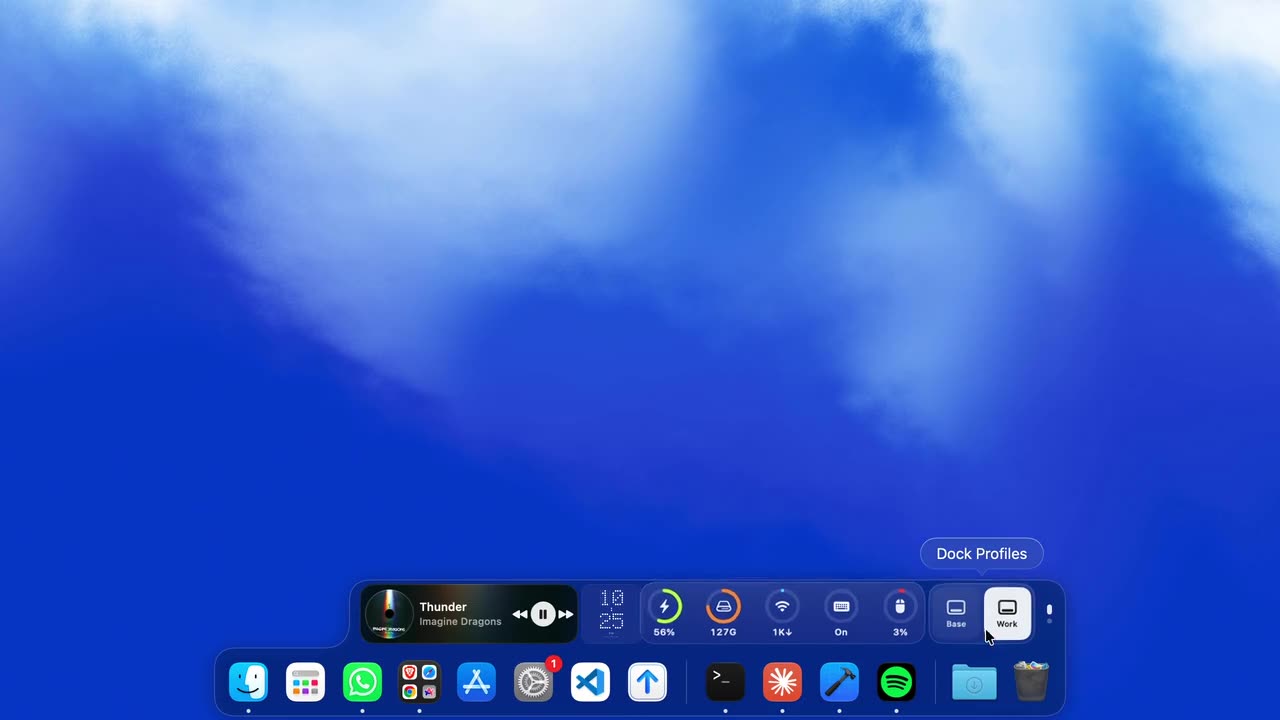
I'm a Mac developer, and I already had an app called Notch Space that turns the MacBook notch into a small control panel. So I added a Dock to it (it shipped in Notch Space 2.0).
It keeps everything you're used to: your apps, folders and Trash. Then it adds live tiles right next to them:
- Now Playing: control Spotify or Apple Music without switching apps
- Clock and focus timer: always visible, never a window
- Live system stats: battery, storage, network and more
- Dock Profiles: one set of apps for work, one for the rest, switched in one click
You can put it at the bottom, left or right, pick a look (dark glass, clear glass or solid black), and keep notification badges and minimized windows.
The part I worried about most
Replacing the Dock felt risky. What if someone tries it and wants their old Dock back?
So I made two promises. First, it can import your current macOS Dock, so your apps are already in place. Second, if you turn it off, your original macOS Dock settings come back exactly as they were. Nothing is lost.
Should you replace your Dock?
If you mostly use the Dock to open apps, the free fixes above are probably enough.
But if you keep switching apps just to skip a song, check your battery or see your timer, a Dock that shows information is a real upgrade. It's the change I notice most every day.
Want to try it? Download Notch Space and import your current Dock in one click.